From Web to App: Turn your PHP8/CodeIgniter 4 project into a desktop application
Extend the reach of your PHP8/CodeIgniter 4 application and bring it to your users' desktops. Learn how to package your app for Windows, macOS, and Linux, and take advantage of each platform's native features.
We are going to show how to convert a web application to a desktop application using ElectroJS
For all of this it is necessary to have all of the following already installed
● Git, can be Git GUI
First we clone the repository with the following code
git clone https://github.com/electron/electron-quick-start.git
In the package.json file we leave it as follows{"build": {"appId": "com.electron.example","compression": "maximum"},"name": "XML2PDF CFDI","version": "2.0.0","description": "Una pequeña aplicación para convertir el CFDI XML a PDF","main": "main.js","compression": "maximum","scripts": {"***": null,"pro:windows": "electron-builder --win"},"repository": "https://github.com/electron/electron-quick-start","keywords": ["CFDI","XML","PDF","tutorial"],"author": "Julio Cesar Leyva Rodriguez","license": "CC0-1.0","devDependencies": {"electron": "^21.2.3","electron-builder": "^22.14.13","electron-packager": "^17.1.1"},"dependencies": {"modclean": "^3.0.0-beta.1"}
in main.js we leave it to do what it will do is load the url and launch the php service
// Modules to control application life and create native browser window
const {app, BrowserWindow} = require('electron')
const path = require('path')
const exec = require('child_process').exec;
function execute(command, callback) {
exec(command, (error, stdout, stderr) => {
callback(stdout);
});
};
// call the function
execute('Ejecutar.bat', (output) => {
console.log(output);
});
function createWindow () {
// Create the browser window.
const mainWindow = new BrowserWindow({
width: 800,
height: 600,
webPreferences: {
preload: path.join(__dirname, 'preload.js')
}
})
// and load the index.html of the app.
mainWindow.setMenu(null)
mainWindow.loadURL('http://localhost:8097')
// Open the DevTools.
// mainWindow.webContents.openDevTools()
}
// This method will be called when Electron has finished
// initialization and is ready to create browser windows.
// Some APIs can only be used after this event occurs.
app.whenReady().then(() => {
createWindow()
app.on('activate', function () {
// On macOS it's common to re-create a window in the app when the
// dock icon is clicked and there are no other windows open.
if (BrowserWindow.getAllWindows().length === 0) createWindow()
})
})
// Quit when all windows are closed, except on macOS. There, it's common
// for applications and their menu bar to stay active until the user quits
// explicitly with Cmd + Q.
app.on('window-all-closed', function () {
if (process.platform !== 'darwin') app.quit()
})
// In this file you can include the rest of your app's specific main process
// code. You can also put them in separate files and require them here.
electron-packager . -platform=win32 -arch=x64XMLPDF Converter
And it generates the necessary files for us
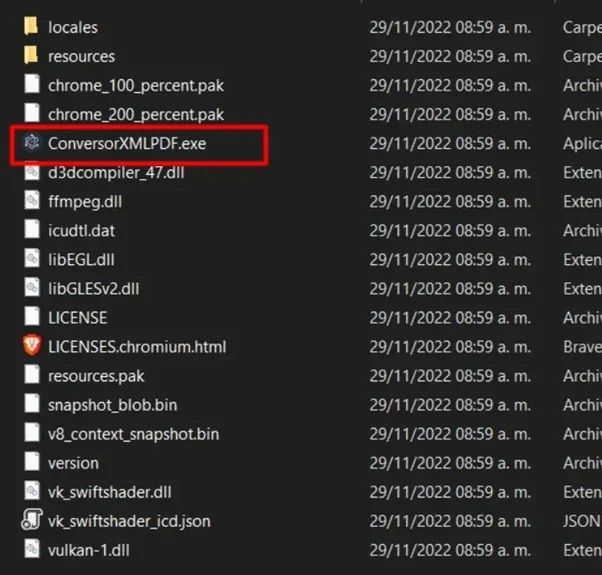
We create a folder in C: called application or whatever you want to call it and we copy the content, the codeigniter project folder and the PHP executable files with which they work, you can copy the xampp files and with which they debug through netbeans
would be as follows
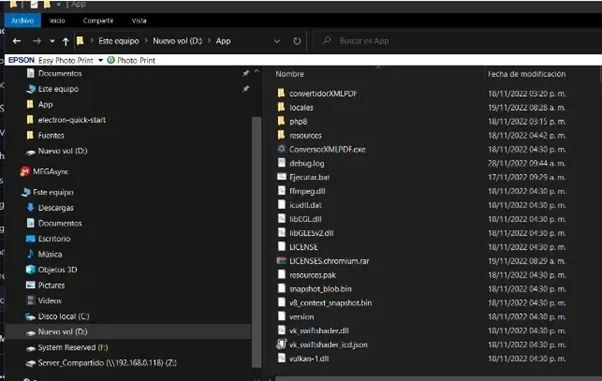
ConverterXMLPDF would be the project in codeigniter, php8 are the binaries necessary to execute php code, this can be extracted from xampp and the rest are the electronJS files
Now in the igniter code configuration file in config/app.php in the base URL we leave it like this
public $baseURL = 'http://localhost:8097/';
The Execute.bat file is the one that will start the entire codeigniter and inside it is the following code
@echo off
php8\php.exe XMLPDF converter/spark serve --port 8097
The Run.bat file runs automatically when you open the executable
And that's it, now we just have to do the installer, but we'll leave it for another manual.


Comments
Post a Comment